Introduction
Getting Started
Change History
Donation
FAQ
Application Shortcutsback to top
Do you have a mass of applications in daily use? Do you have many different shortcuts on Home screen and hard to categorize? Smart Shortcuts can solve your problem!
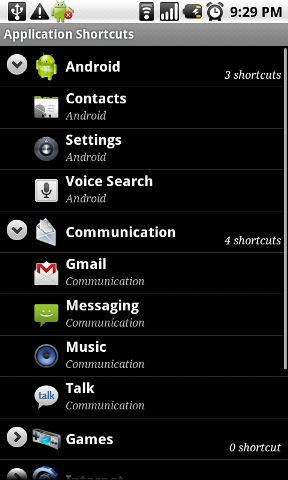
From the main screen of Smart Shortcuts, click "Application Shortcuts" button, let's go to the application management page as following:
When you first login this page, Smart Shortcuts will scan all your installed applications and cache them for smoothly access in future. This operation will only appear once, then it will be much faster to load all your application shortcuts. In future, when you install new, modify existing and delete old applications, Smart Shortcuts will automatically synchronize.
You can assign tag for each application. Application without tag will under "Other Applications" folder. All applications are sorted by their names. Starting from Smart Shortcuts 1.2.0, you can highlight your favorite application/shortcuts by assigning a star mark to it. All shortcuts that contain starred mark has high priority when sorting.
By default, Smart Shortcuts already defined some tags for you, such as "Android" and "Communication". Each tag can be a shortcut on your Home screen in future to easily access all applications that belongs to this tag. When you click each application, it will pop-up a dialog for you to choose tags, you can choose multiple tag for each application, as following:
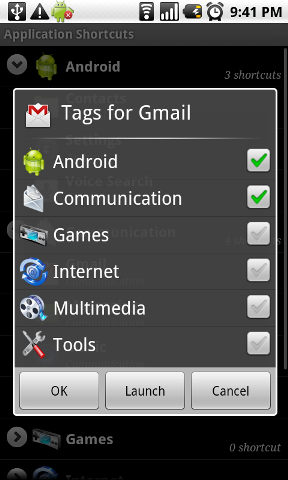
If you want to change tag name and icon, just long click it, then tag modification dialog will pop-up. Here you can modify tag name and choose new icon from icon list. The list contains more than 40 elegant icons for you to choose, each icon can be your shortcut icon on Home screen and also present pretty well on both normal (320*480 such as HTC G1, G2, G3 and G4) and high (480*854, such as Moto Droid and Nexus One) resolutions.
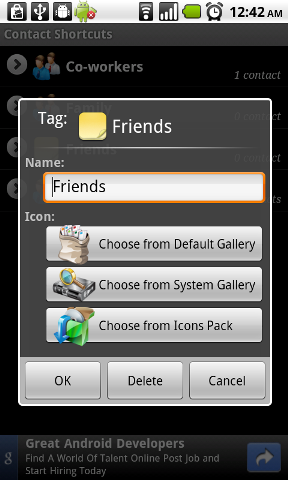
Starting from version 1.2.0, you can choose customized icons from system gallery. Please press "choose from system gallery" button to open system gallery and choose your favorite icon! The chosen icon will be automatically resized to the same size as standard android icons.
Starting from version 1.3.0, you can choose customized icons from 3rd party icon pack. You can find many free icon pack from Android Market. Please press "choose from icon pack" button to open icon pack gallery and choose your favorite icon after you download your desired icon pack! The chosen icon will be automatically resized to the same size as standard android icons.
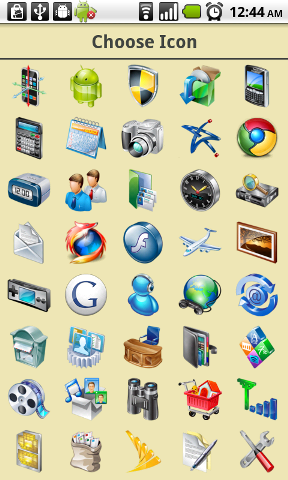
If you want to create your own tags, just click menu button, in options menu, choose "Add Tag" menu item, it will popup almost the same dialog as previous one for you to easily create new tag, assign tag name and new icon:
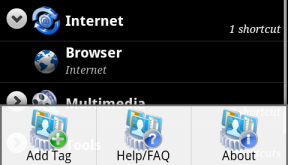
Now you have managed all applications with suitable tag, then you are ready to create shortcuts for application tags on Home screen. If you want to do it now, goto Create Shortcuts section.
Bookmark Shortcutsback to top
Do you have lots of bookmarks stored in your browser? Smart Shortcuts also can help to categorize them! From main screen, click "Bookmark Shortcuts" to start:
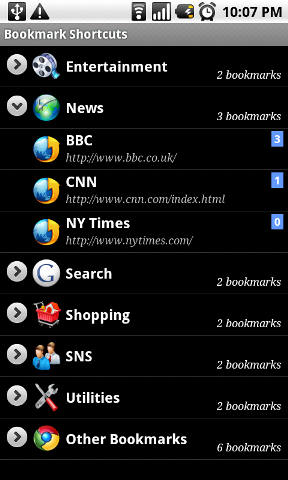
By default, Smart Shortcuts also provide default tags for you and already assigned some tag to known websites. Each website item shows the title and url. Have you notice the blue label on top right? That number shows how many times you visit this website! Now you can assign tag for different bookmarks, also you can modify tag and create new ones.
After you arrange all bookmarks with suitable tag, then you are ready to create shortcuts for bookmark tags on Home screen. If you want to do it now, goto Create Shortcuts section.
Contact Shortcutsback to top
You may have lots of contacts. Do you want to make search desired contact easy from Home screen? Let Smart Shortcuts help you! From main screen, click "Contact Shortcuts" to start:

By default, Smart Shortcuts also provide default tags for you to use. The contacts that contains yellow star in line is your favorite. Now you can assign tag for different contacts, also you can modify tag and create new ones.
When you click menu item, there is one difference. Contacts has preferences menu item. It is used to define if you only want to display contacts that have phone numbers. By default, Smart Shortcuts only displays contacts with phone numbers, but you can switch it easily from preference page as following:
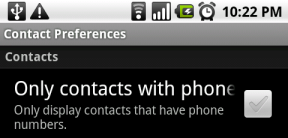
After you arrange all contacts with suitable tag, then you are ready to create shortcuts for contact tags on Home screen. Goto next section for more information.
File/Folder Shortcutsback to top
File/folder shortcuts feature is deprecated after version 1.9.0 since there are lots bug because of this feature, please directly use built-in file shortcut feature of File Manager.
The link to File Manager application is as following: https://play.google.com/store/apps/details?id=com.rhmsoft.fm
The document to File Manager is as following: http://rhmsoft.com/fm/help.html
The document to File Manager shortcut feature is as following: http://rhmsoft.com/fm/shortcut.html
Freestyle Shortcutsback to top
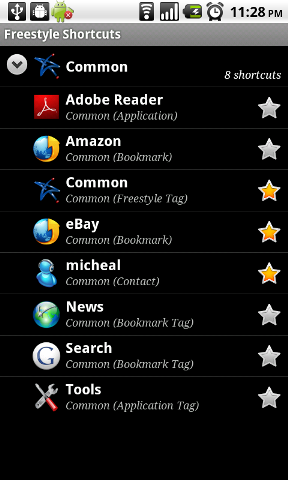
Do you want to mixture applications, bookmarks and contacts in the same tag shortcut? Do you want to setup tag shorcut nested tag in your shortcuts? If yes, then please use freestyle shortcuts which is the latest feature of version 1.6.0!
The user experience of freestyle shortcuts is the same as others. You can create tags, change tag name and icon, and then assign shortcuts to each tag. The only difference is that you can assign any type of shortcut into freestyle tags. The supported types including:
You can mixture these types of shortcuts together under the same tag. Such as shopping tag, you can add paypal application, and amazon website together under the same tag. Also you can build up multi-level tags, such as tooling tag, can also include multimedia tooling tag, which may include many media player applications and websites.
Create Shortcuts on Home screenback to top
Now happy time! Create shortcuts on home screen to easily access everything!
Go to home screen, long click one empty slot on screen, then pop-up "Add to Home screen" dialog:
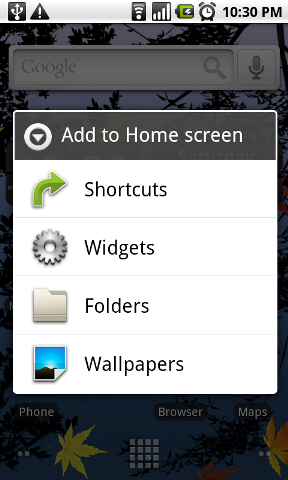
Then click Shortcuts item, from the dialog popup, scroll down to find Smart Shortcuts item, click it!
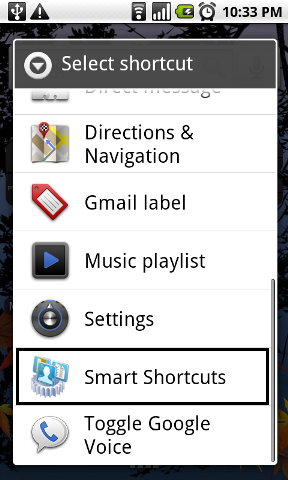
Wooo! You will notice that all your tags are ready for you to choose!
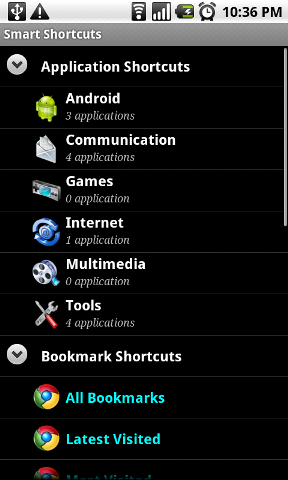
And there is even more! They are highlighted in different color:
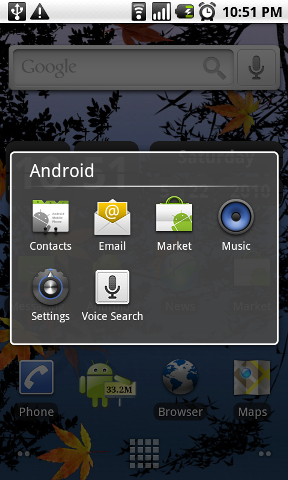
Applications:Click one tag that you want to create shortcut, then you will notice that the desired shortcut has been created for you on your Home screen, for instance, Android from application tags and News from bookmark tags:
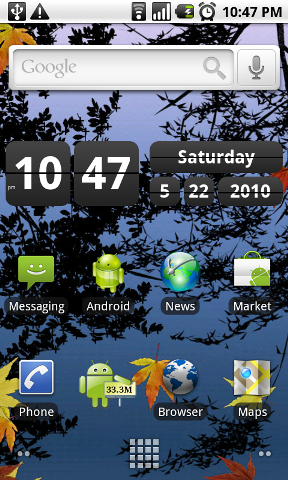
Click the newly created tag shortcutsand have a try. Application shortcuts are sorted in grid view, bookmarks and contacts are sorted in list view for you to easily access! If you want to exit the popup dialog, you can click "back" button, or even just click outside of the dialog, it will close the dialog for you! Enjoy them from now on! Thanks for using Smart Shortcuts!
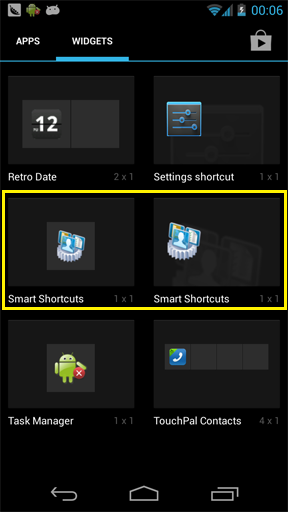
Note: If your device is running Android 3.0 above, the behavior of adding widgets may be different. Take Android 4.1.x as an example:
v1.9.0
v1.8.0
v1.7.0
v1.6.0
v1.5.1
v1.5.0
v1.4.0
v1.3.1
v1.3.0
v1.2.2
v1.2.1
v1.2.0
v1.1.0
If you like this application, please donate to support our work! You will get ad-free version after donation! Go to perferences page, donate section to donate this application:
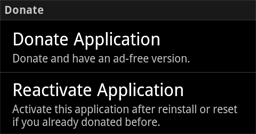
You can click "Donate Application" menu item to start the donation process. You need to download donation module to finish the donation. You can uninstall this module after donation if you want. The donation module contains the Google official in-app billing support. After you install the donation module and click "Donate Application" menu item, the donation dialog will popup. Click "Donate" button to finish the donation process using Google in-app billing.
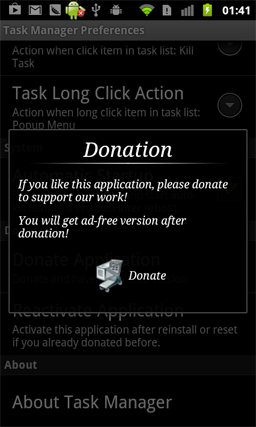
After the donation, the ad-bar will be removed automatically. Your donation record is binded to your Google account, it means for all your devices using the same google account, you can donate once and get ad-free version on all devices. For other devices, you can click "Reactivate Application" menu item, it will check your donation record in Google Play database for your account and then enable ad-free version if donation record found.
Question: Why my shortcus loose name and icon after reboot?
Answer: This is an known issue on some specified devices, as I know, Samsung Moment. In release 1.5.0, smart shortcuts support widget shortcuts. You can use widget instead of standard shortcuts. The usage of widget is the same as standard shortcut, but will not loose name and icon anymore.
Question: I can not find my problem in this FAQ list?
Answer: Please email me your problem together with your phone type and android version: support@rhmsoft.com